How to use Apple Translate in China

A translation option for iPhone users. Prepare supported downloaded languages before travelling if you need offline use.
翻译 · Translation · Content reviewed 12 November 2026
Before you start
- Open Translate and download supported Chinese and your preferred language while online.
- Test a typed sentence, a short spoken request and any camera function you need.
Step-by-step guide
Choose your languages
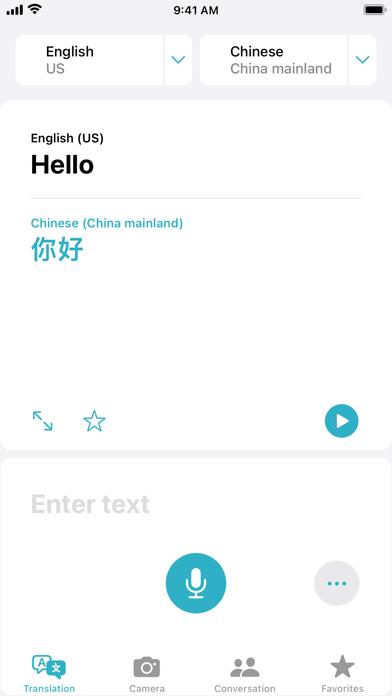
Select Chinese and your preferred language. Download supported languages in advance if you need offline translation.
Look for: Language selection
Translate a short phrase
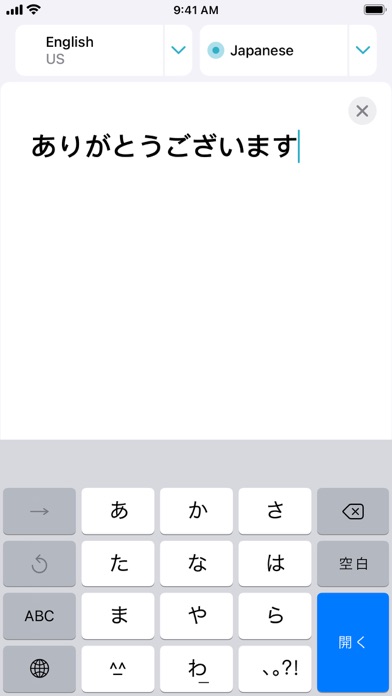
Type or speak one simple sentence. Use the result to communicate a specific request.
Look for: Text / Microphone
Read a menu or sign
Use camera translation when available. Keep text sharp and check that the source language is correct.
Look for: Camera
Test before departure
Try the exact functions you need without a connection. Offline availability can differ between features and languages.
Look for: Downloaded languages
Tips and common problems
Download both languages
Open the language picker and look for the download control for Chinese and your language. Wait for the downloads to finish, then test offline; setting a language is not downloading it.
A photo and typed text behave differently
Test camera recognition separately. If it fails, type a short phrase or use recognised text copied from a clear photo where available.
Do I need a new iPhone?
Do not confuse the Translate app with newer Apple Intelligence or live-call features. Check Apple’s availability information for the particular feature, language and device you intend to use.
Voice conversation gets confusing
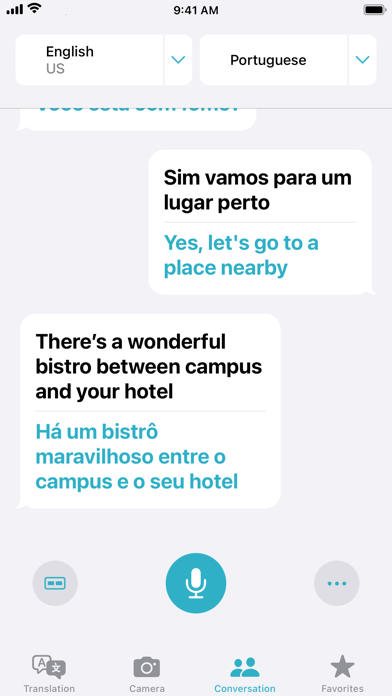
Take turns with one short sentence, then let the other person read the result. Verify names, amounts and dates using the original text.
Screenshot references
These App Store previews show the app in general. Use the steps above for the specific controls to look for.
Get the app
Apple Translate on the App Store ↗Sources and review
Checked 12 November 2026. Older references are labelled; current in-app terms apply. Community images illustrate an earlier interface, not verified current controls.
- Apple: download both languages for offline translation · publication date not stated
- Tom’s Guide: practical translation comparison (2025; experience, not a current feature matrix)
Questions & travel tips
Share what worked, or ask about this guide. Comments appear after review.